Problems
One of the features of automated application testing is uploading files. You can easily create a file in the workspace and upload it to the web applications by protractor when running locally. But when you try to run your test on docker, a problem occurred. There is a message: “Failed: invalid argument: File not found: /home/headless-auto/data/abc.txt”. It means the webdriver server is not able to reach the folder containing the file abc.txt.
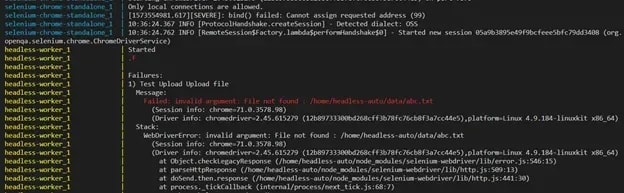
This is because when we run the Protractor in docker, the Selenium server and Protractor are running in 2 individual containers, so the Selenium server container cannot get the file that was created and saved in the Protractor container, to put to the web application.
Is there any way to get a file in a container from another container?
Yes! It is not actually getting a file in a container from another container, but it still helps to solve the problem above. The docker supports us to share the folder between containers by using volume. All files in the shared folder will be synchronized with the volume. So the selenium server can get all files in the shared folder in the protractor container, then able to execute the uploading files.
Jump to coding
Let's get the idea from the example below:
Protractor needs two files to run, a spec file and a configuration file. Let's prepare an uploading test script:
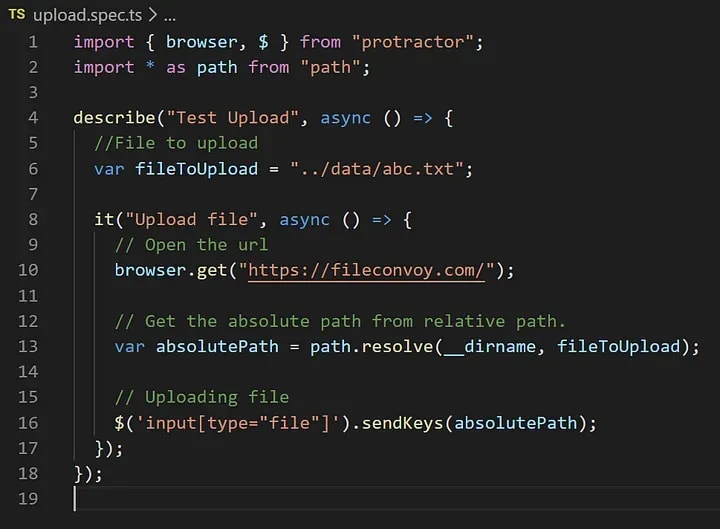
The Describe and Its syntax are from the Jasmine framework. Browser is a global created by Protractor, use path.resolve helper function to resolve the relative path to an absolute path.
Configuration file:
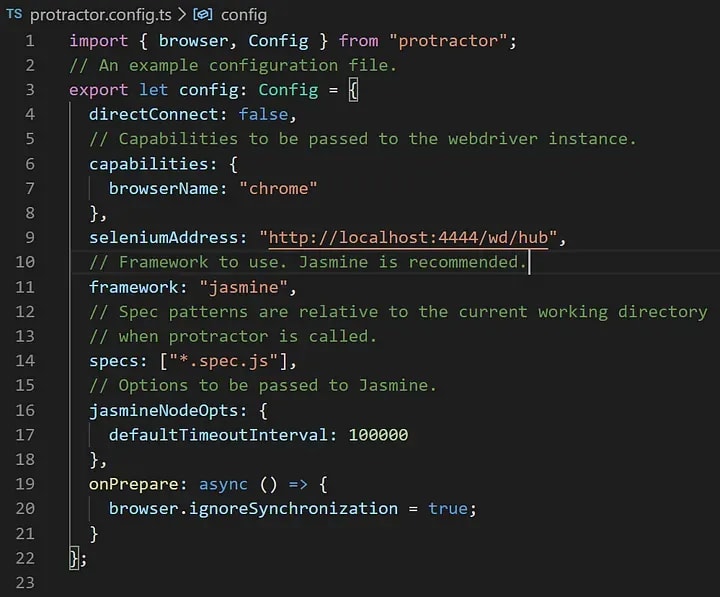
This configuration file means:
- The default browser is Chrome (The protractor also supports Firefox, IE, and Safari..)
- The address for running the Selenium server is http://localhost:4444/wd/hub. The Protractor can test directly against Chrome and Firefox without using a Selenium server. To use this, in your config file set directConnect: true.
- The framework is Jasmine. Protractor supports two behavior-driven development (BDD) test frameworks out of the box: Jasmine and Mocha.
- “specs” option tells to protractor where is test files.
Start the Protractor test:
We need to run tsc command to compile into javascript that node.js can understand.
Run webdriver-manager update to download the necessary binaries. Then start up the selenium server: webdriver-manager start.
Now we can execute “protractor output/protractor.config.js” to run the protractor test. For now, we are able to open the web application and then upload the file.
To run on docker, add the Dockerfile and docker-compose.yml files like below to the workspace.
Dockerfile
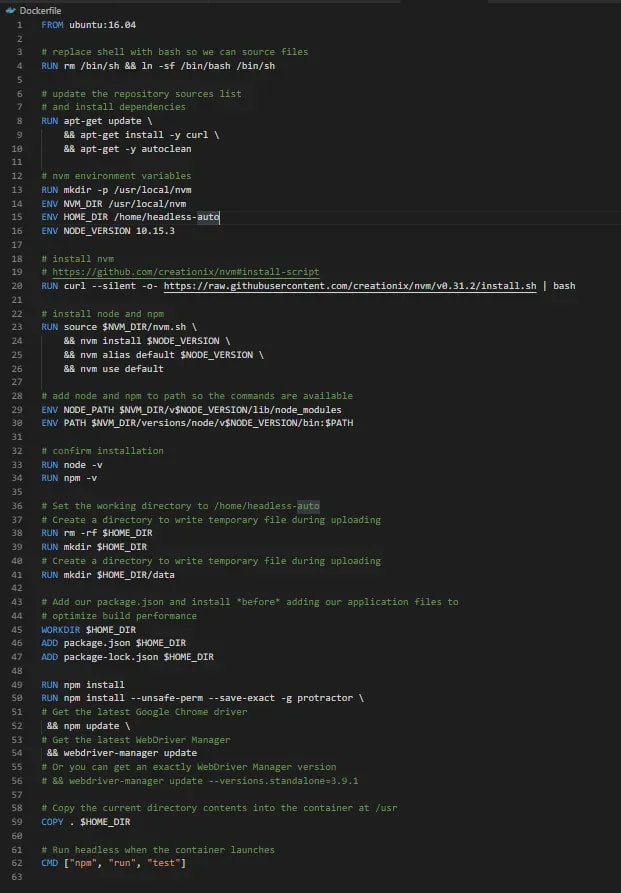
docker-compose.yml
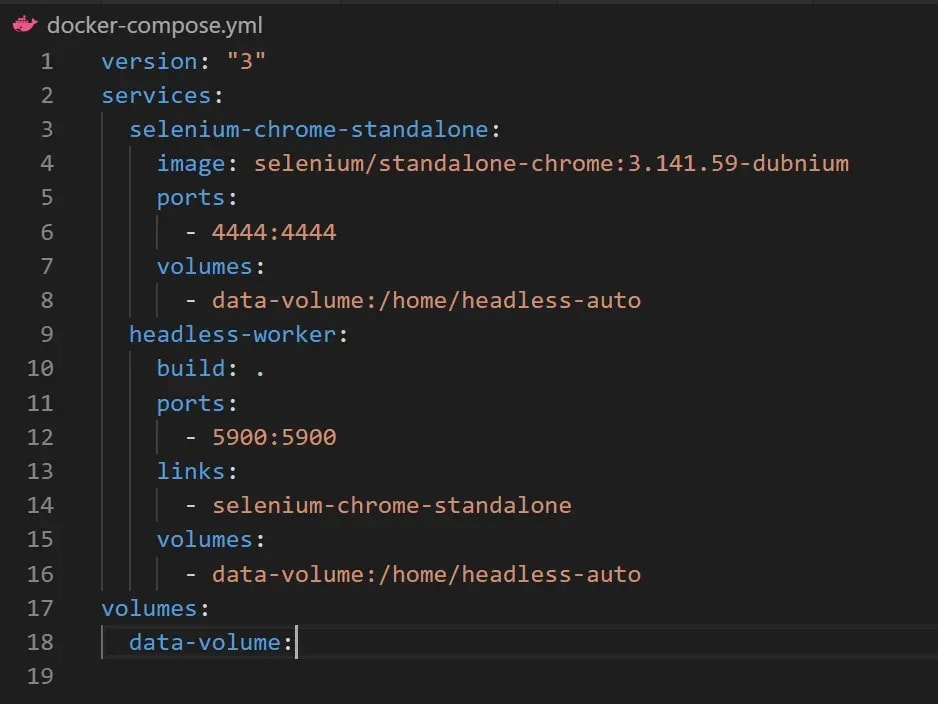
Docker-compose use selenium/standalone-chrome:3.141.59-dubnium as the selenium server so we need to change the seleniumAddress in protractor.config.ts file to http://selenium-chrome-standalone:4444/wd/hub
We will share all files and folders in /home/headless-auto directory of the Protractor and Selenium server containers into data-volume volume.
Now we can run the test in docker by executing docker-compose up command. Then you will able to upload the file to the website without any issue.
Conclusion
Running the end-to-end test on Docker is an easy way to implement the automation tests. With Docker run can your tests on cloud-based such as AWS Fargate or even AWS Lambda. I hope this post will help you and save your time!