Sometimes, we need to develop some projects with different Odoo versions. So we need to make sure that the project’s dependencies will not interfere with the dependencies of other projects that can be running a different version of Odoo or will use different third-party add-on modules, which need different versions of Python dependencies.
This article will step by step, set up a multi-version Odoo development environment locally for Ubuntu (see more at Odoo 12 Development Cookbook).
Requirements
Dependencies need to be installed for this article:
Setup Databases
Docker-compose file for PostgreSQL with default database is odoo_13.
version: "3.7"
services:
  odoo-db:
    image: postgres:10.11
    container_name: odoo_postgres_10_11
    ports:
      - "5432:5432"
    environment:
      - POSTGRES_DB=odoo_13
      - POSTGRES_PASSWORD=odoo
      - POSTGRES_USER=odoo
      - PGDATA=/var/lib/postgresql/data/odoo
    volumes:
      - odoo-db-data:/var/lib/postgresql/data/odoo

volumes:
  odoo-db-data:
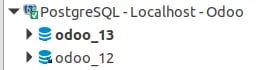
Run docker-compose up to create a container. Then connecting to DB and create new database odoo_12
Workspace structure
Create a workspace with structure.
workspace
    ├── odoo-12
    │   ├── bin       // Include various helper executable shell scripts
    │   ├── filestore // Use as a file store
    │   ├── local     // Save your instance-specific add-ons (module)
    │   ├── logs      // Store the server log files
    │   └── src       // Contains the clone of Odoo itself
    └── odoo-13
        ├── bin
        ├── filestore
        ├── local
        ├── logs
        └── src
Setup Odoo version 13 development environment
Navigating Commandline to workspace/odoo-13 and run.
virtualenv -p python3 env
git clone https://github.com/odoo/odoo.git src/odoo
env/bin/pip3 install -r src/odoo/requirements.txt
Save the following shell script as bin/odoo :
ROOT=$(dirname $0)/..
PYTHON=$ROOT/env/bin/python3
ODOO=$ROOT/src/odoo/odoo-bin
$PYTHON $ODOO -c $ROOT/local.cfg "$@"
exit $?
Make the script executable:
chmod +x bin/odoo
Create a local.cfg configuration file for your instance:
\[options\]
addons\_path = currentDir/src/odoo/odoo/addons, currentDir/src/odoo/addons, currentDir/local
data\_dir = currentDir/filestore
db\_host = localhost
db\_user = odoo
db\_password = odoo
db\_name = odoo\_13
Start server:
bin/odoo -i base
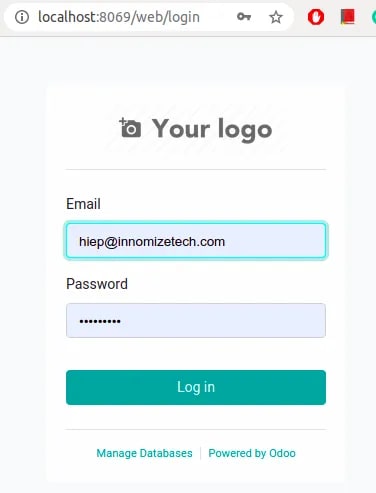
Now can you able to login to Odoo
Setup Odoo version 12 development environment
Every step is the same as version 13. We only update route odoo-13 to odoo-12, db_name = odoo_13 to db_name = odoo_12 in local.cfg and git clone source from brand odoo 12.
git clone https://www.github.com/odoo/odoo --depth 1 --branch 12.0 --single-branch
Conclusion
By isolating dependencies for every Odoo version. We will prevent conflict when developing Odoo modules for every version locally.
I hope this article will be helpful.