Inspecting mobile app traffic is a powerful way to ensure app quality, security, and reliability. Testers can uncover critical insights into app behavior, debug issues, and identify vulnerabilities by analyzing data exchanged between apps and servers.
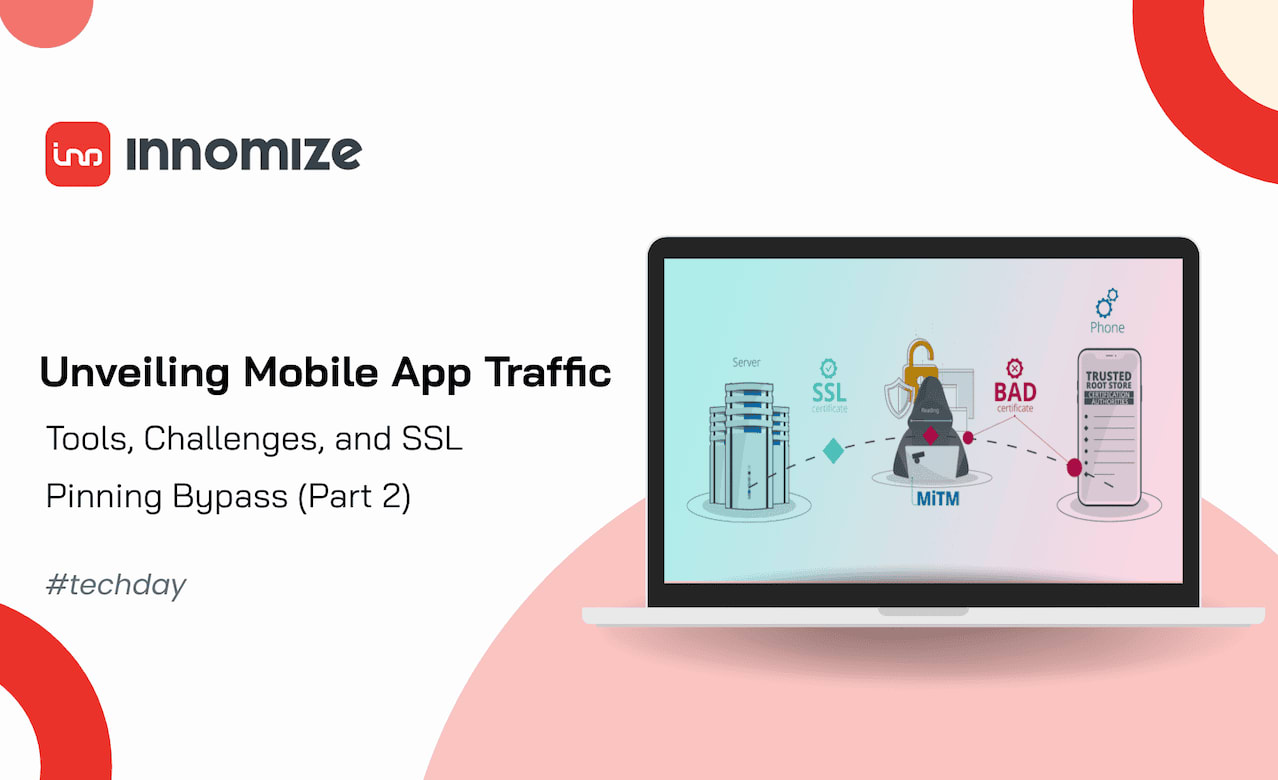
However, advanced security measures like SSL Pinning often block traffic inspection, posing challenges for testers. This blog explores tools and techniques for capturing traffic and overcoming these obstacles, including using Frida to bypass SSL Pinning, helping you enhance your testing workflows effectively.
-
Why Capture Mobile App Traffic?
Analyzing app traffic is essential for several reasons:
-
Debugging and Troubleshooting:
Diagnose issues like failed or delayed API calls.
Analyze the data sent and received for better debugging.
-
Security Testing:
Detect vulnerabilities such as sensitive data leaks, insecure transmission, or weak encryption.
-
Understanding App Behavior:
Explore app workflows and interactions with network services.
Uncover hidden or undocumented API calls.
-
Popular Tools for Traffic Analysis
Several tools can help capture and analyze traffic effectively:
- Burp Suite: A comprehensive tool for intercepting and analyzing network traffic.
- OWASP ZAP: Free and open-source, great for basic interception needs.
- Charles Proxy: User-friendly and effective for mobile app testing.
-
Setting Up Charles Proxy for Traffic Capture
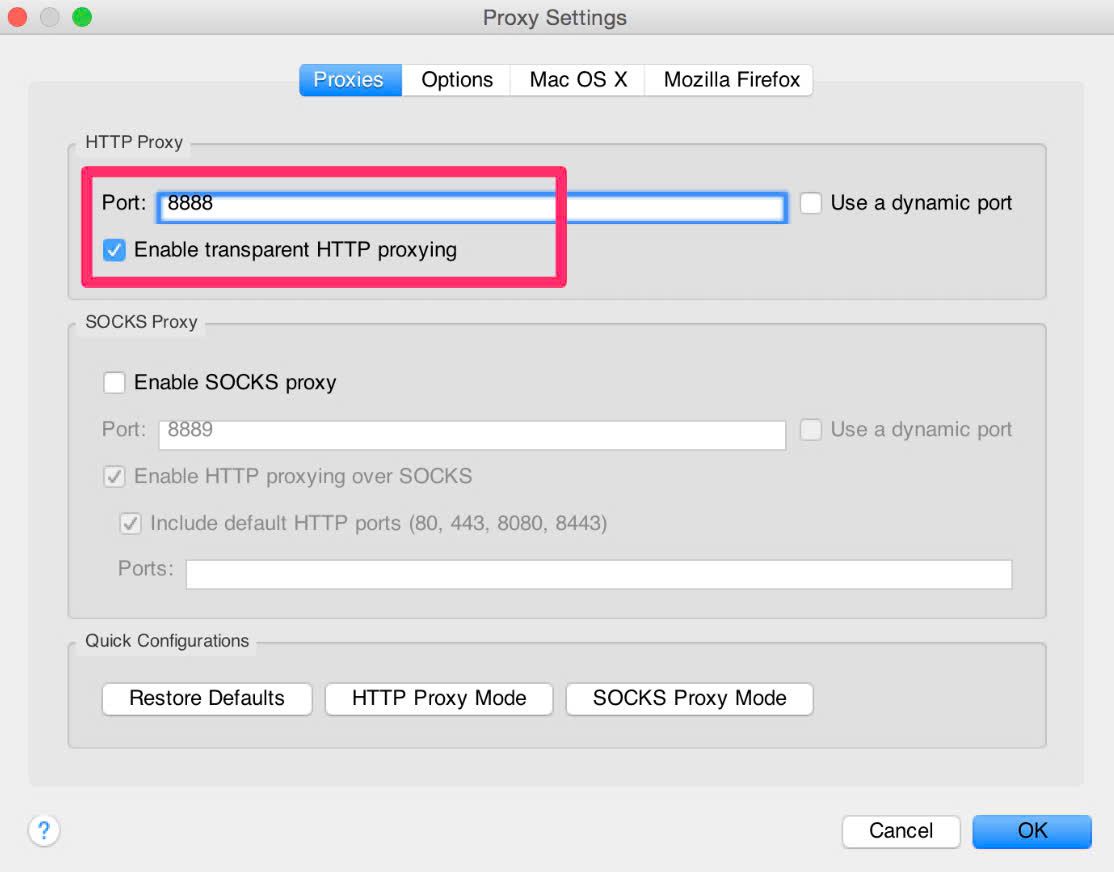
In Charles, go to Proxy > Proxy Settings.
Navigate to the Proxies tab.
Check the box labeled Enable transparent HTTP proxying.
Note the Port value (e.g., 8888), as this will be used to configure your mobile device.
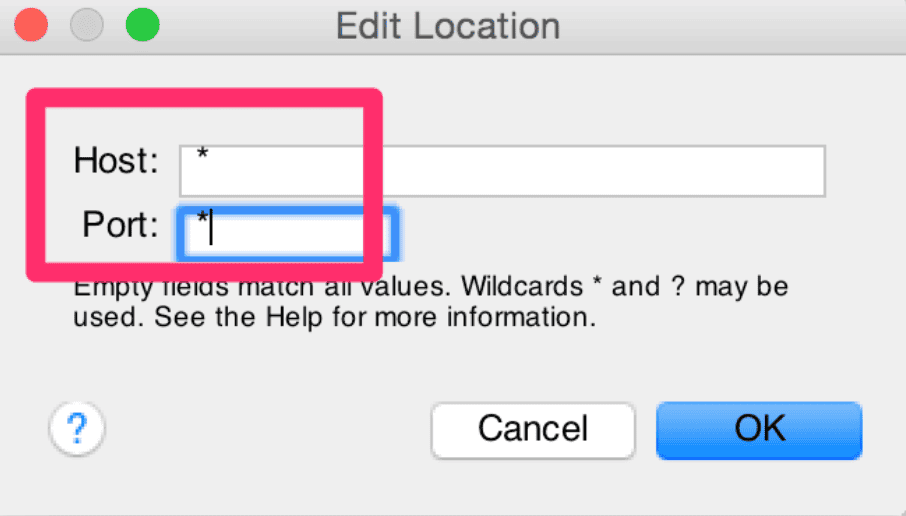
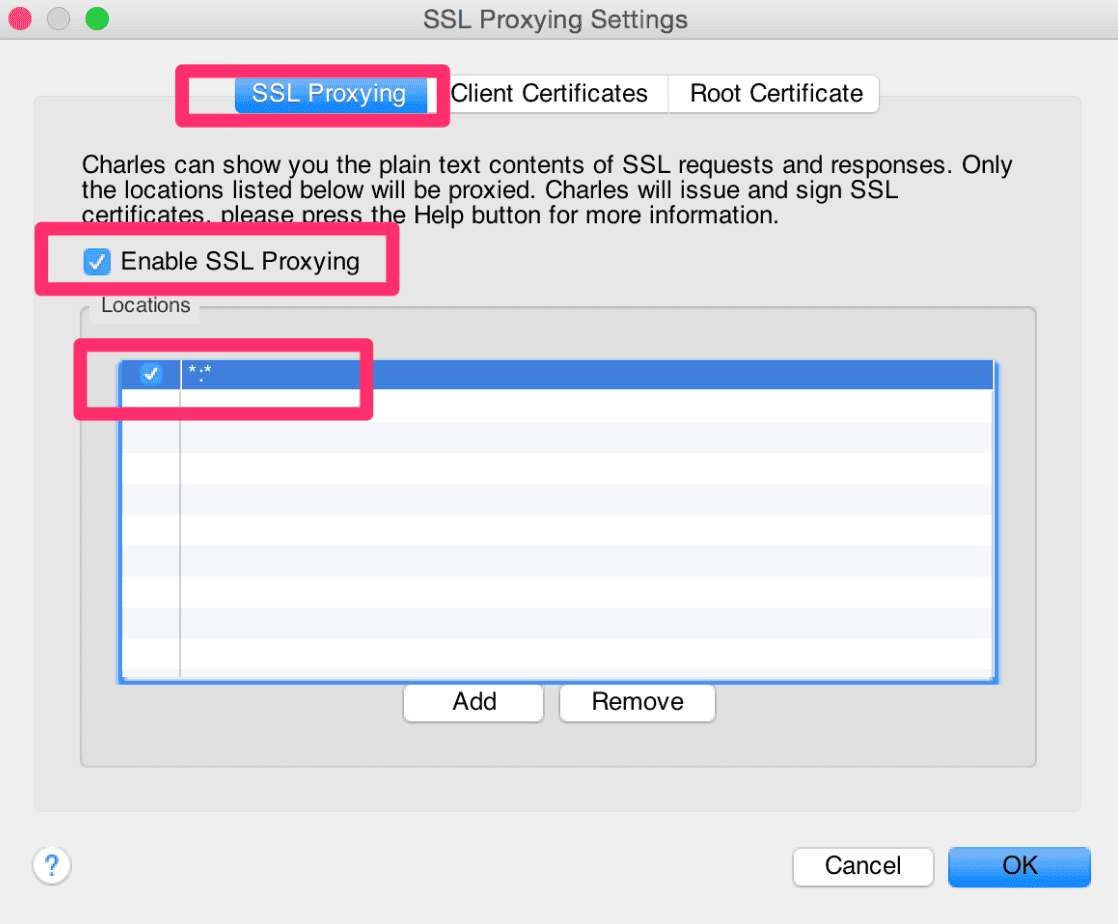
Go to Proxy > SSL Proxy Settings.
In the SSL Proxying tab, check the box for Enable SSL Proxying.
Add a wildcard (.) or specific domains (e.g., .example.com) in the Locations section to capture HTTPS traffic for those domains.
- Configure Access Control:
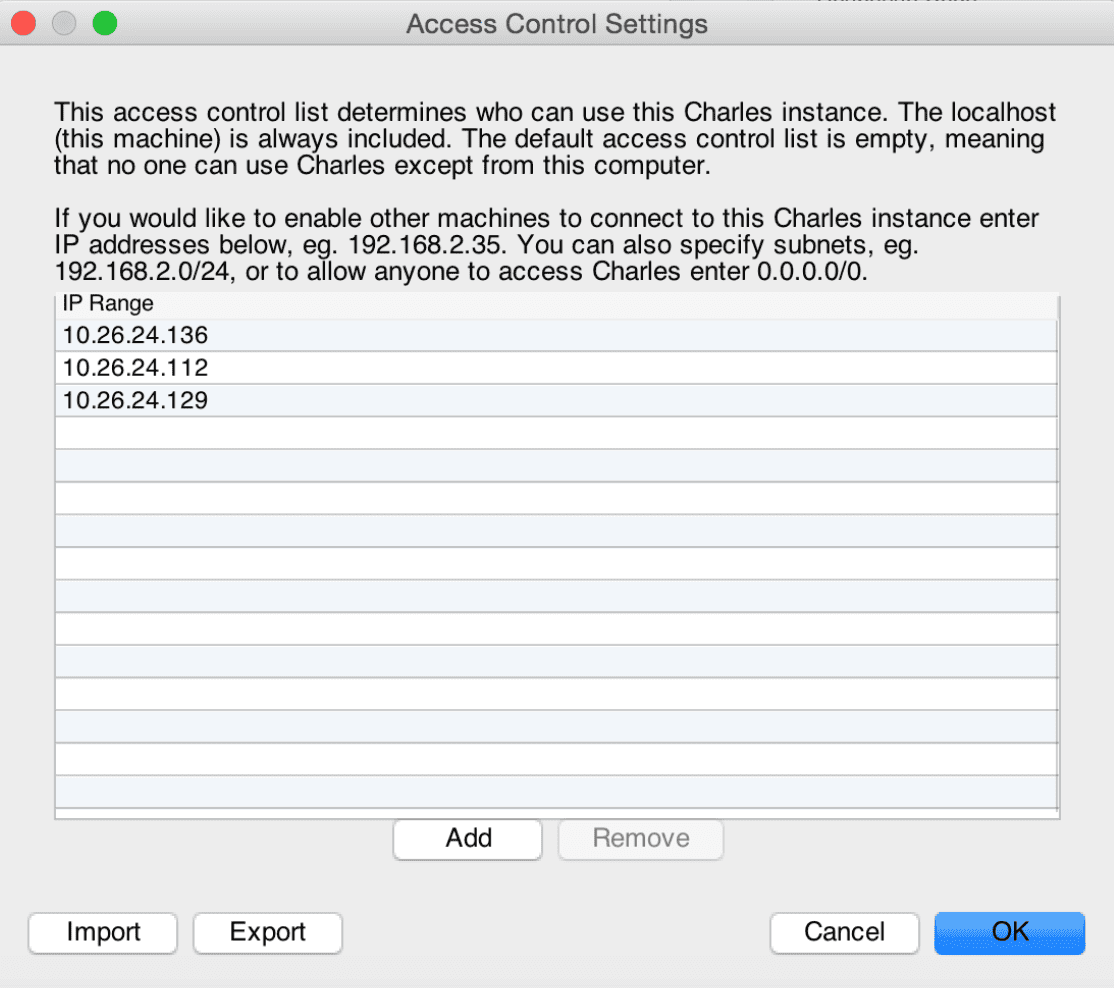
Open Proxy > Access Control Settings.
Add your local subnet (e.g., 192.168.1.0/24) or the IP address of your mobile device to authorize it to use the proxy.
This step ensures that devices on your local network can connect to Charles.
- Test Connection from Your Device:
Configure your mobile device to use Charles Proxy:
- Go to your device's Wi-Fi settings.
- Select the connected Wi-Fi network and modify the proxy settings:
- Proxy: Manual
- Server: Your computer's IP address (e.g., 192.168.1.100).
- Port: The port value from Charles (e.g., 8888).
Open a browser on your mobile device and visit any webpage.
Charles will display a dialog prompting you to allow or deny SSL proxying for the site. Click Allow.
If the prompt does not appear, restart Charles and try again.
- Install Charles SSL Certificate on Your Device:
From your mobile device, navigate to Charles proxy
Download the Charles SSL certificate.
Follow the instructions to install the certificate:
- On iOS: Go to Settings > General > VPN & Device Management to install the profile and trust the certificate in Settings > General > About > Certificate Trust Settings.
- On Android: Install the certificate in Settings > Security > Install Certificate and follow the prompts.